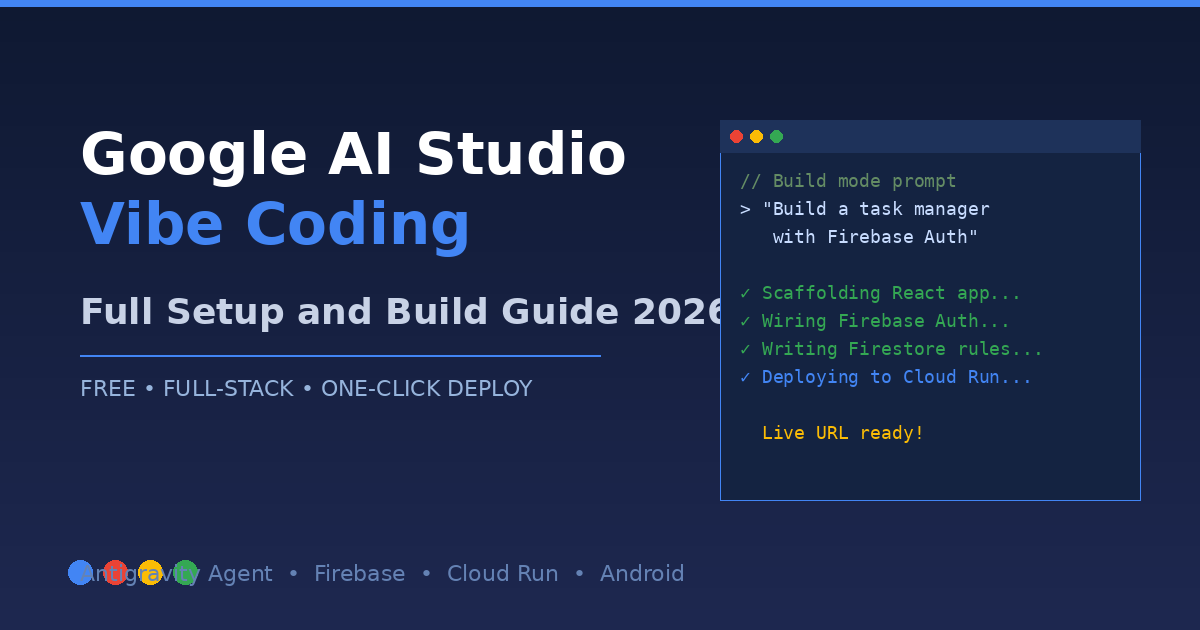
Google AI Studio’s vibe coding lets you build and deploy full-stack web and Android apps using plain English — no terminal, no package managers, no boilerplate. Open a browser, describe what you want, and the Antigravity agent writes, runs, and deploys your app to Cloud Run. Completely free for most developers.
What Is Vibe Coding in Google AI Studio?
Vibe coding in Google AI Studio is a natural language-first development workflow where you describe a software feature or application in plain English and an AI agent — called Antigravity — writes, iterates, and deploys the code on your behalf. Unlike traditional AI code assistants that require you to manage files and run commands yourself, Google AI Studio’s Build mode manages the full development lifecycle: scaffolding the project, installing dependencies, wiring up backend services (Firebase, Cloud SQL, Cloud Run), and pushing a live deployment. The Antigravity agent was acquired from Windsurf (for $2.4 billion in late 2025) and integrated directly into Build mode in March 2026. At Google I/O 2026, Google announced Antigravity 2.0 — which reportedly built an operating system in 12 hours using autonomous multi-agent parallel development. For developers and non-technical builders alike, AI Studio now represents the most capable free vibe coding environment available, supporting everything from a single-page React app to an authenticated full-stack Firestore backend without writing a line of code manually.
How does Antigravity differ from other AI coding tools?
Most AI coding assistants (Cursor, GitHub Copilot, Windsurf) are IDE extensions — they help you write code faster but still require you to own the project structure, run commands, and manage infrastructure. Antigravity operates at a higher abstraction level: it treats infrastructure as a prompt output. You say “add user authentication,” and Antigravity provisions Firebase Auth, writes the login flow, updates the Firestore security rules, and redeploys — you never open a terminal. This makes it categorically different for greenfield projects where you want to go from zero to a live URL without context-switching to a shell.
Getting Started: Setup and Access (Free — No Credit Card Needed)
Google AI Studio is completely free to access — no subscription fee, no credit card, no free-trial period that expires. You sign in with a Google account at aistudio.google.com and get immediate access to the full interface including Build mode, the Gemini API playground, and file uploads. Billing only begins when your app’s API calls exceed the free Gemini Developer API quota (currently 1,500 requests/day on Gemini 2.0 Flash, 50 requests/day on Gemini 2.5 Pro). For a personal project or prototype, you will almost certainly stay within the free tier indefinitely. The first two app deployments to Google Cloud Run are also free — no credit card required — per Google’s I/O 2026 announcement. To start: navigate to aistudio.google.com, click Build in the left sidebar (not Chat or Stream), and you’re in the vibe coding workspace. No local installation, no Node.js version juggling, no virtual environment. The only prerequisite is a Google account and a browser.
What do you get on the free tier vs. paid?
| Feature | Free Tier | Paid (when quota exceeded) |
|---|---|---|
| AI Studio interface | Unlimited | Unlimited |
| Gemini 2.0 Flash API | 1,500 req/day | Pay-per-token |
| Gemini 2.5 Pro API | 50 req/day | Pay-per-token |
| Cloud Run deployments | First 2 free | Standard Cloud Run pricing |
| Firebase Firestore | Free tier (50K reads/day) | Firebase Spark/Blaze pricing |
| Firebase Auth | Free (10K verifications/month) | Firebase Spark/Blaze pricing |
Most solo developers and small teams building internal tools or prototypes never exceed these limits in practice.
Build Mode: Your First App in Natural Language
Build mode is the primary vibe coding interface in Google AI Studio — a split-pane workspace where your prompt input on the left drives a live preview and file explorer on the right. When you open Build mode, you see a single prompt box asking what you want to create. Type a description like “Build a task manager with user login, a Firestore database to persist tasks, and a clean Material Design UI.” Antigravity interprets this as a multi-step plan: it scaffolds a React or vanilla JS frontend, wires Firebase Authentication for the login, creates a Firestore collection for tasks, writes Firestore security rules that restrict reads/writes to the authenticated user, and serves a live preview in the right panel. The entire process takes 60–120 seconds for a CRUD app of this complexity. The planning checkpoint feature (introduced in the Codelabs tutorial workflow) shows you Antigravity’s execution plan before it starts writing code — you can approve, modify, or reject steps at this stage. This is the moment to catch misunderstandings before 300 lines of generated code go in the wrong direction. Once approved, the agent works step-by-step, displaying each file as it’s written, and the live preview refreshes automatically after each significant change.
How do you iterate after the first draft?
After the initial build, you continue the conversation in the same prompt box. Treat each follow-up as a scoped task: “Change the task list to sort by due date” or “Add a color tag to each task.” Smaller, targeted prompts reliably outperform large multi-requirement prompts here. Google’s own Developer Advocates recommend the iterative small-prompt strategy: one feature at a time, always review the live preview before moving to the next prompt. If the agent produces something broken or unexpected, you have three recovery paths: (1) click Revert to undo the last change, (2) type “fix the error in the console” and let the agent self-correct, or (3) switch to the Files panel, find the problematic file, and hand-edit the specific line.
Annotation Mode: Visual Point-and-Click Editing
Annotation mode is a visual overlay tool built into the AI Studio preview panel that lets you click directly on any element in the rendered app and describe the change you want — without writing a prompt or identifying a component by name. It was introduced for designers and non-technical collaborators who find text-only prompting ambiguous when describing UI changes. In Annotation mode, you hover over the live preview, click an element (a button, a heading, a form field), and a text box appears anchored to that element. You type “make this button red and move it to the right side of the header” and Antigravity resolves which component and line of code that element maps to, then applies the change. This removes a common friction point in vibe coding — the struggle to describe where something is on the screen using text alone. The annotation is spatially grounded, so there’s no ambiguity. Annotation mode also supports multi-element annotations: you can click three different elements before submitting, describing changes to each in a single round-trip. This is particularly useful when implementing a visual redesign across a page where elements share a common style update.
When should you use Annotation vs. a regular prompt?
Use Annotation mode when the change is spatial or visual — “move this left,” “make this bigger,” “add a border here.” Use regular Build mode prompts when the change is behavioral or structural — “add a logout button,” “fetch data from Firestore instead of the mock array.” Mixing modes is common and intentional: start with regular prompts for features, switch to Annotation for visual polish.
System Instructions: Locking In Your Coding Standards
System Instructions in Google AI Studio Build mode are a persistent configuration block that Antigravity reads before every code generation step — equivalent to a .cursor/rules file or a Copilot custom instruction, but scoped to the specific Build session. You write them once in the System Instructions panel (accessible via the gear icon), and every subsequent prompt in that session respects them. A useful System Instructions block might include: your preferred stack (React + TypeScript, not vanilla JS), your naming conventions (camelCase for variables, PascalCase for components), your UI library (use Tailwind, not inline styles), your error handling standard (always surface errors to the UI, never swallow them silently), and your deployment target (Cloud Run, not Firebase Hosting). Without System Instructions, Antigravity defaults to its own preferences — which tend toward vanilla JS and inline styles for speed. With a 10-line System Instructions block, the output immediately reflects your team’s standards and requires far fewer correction prompts. The design.md strategy recommended by Google’s Developer Advocates extends this further: maintain a markdown document in the Files panel describing the full design system, and reference it in System Instructions with “Follow the design system in design.md.” This keeps context consistent across a long session where the conversation history alone may not surface earlier decisions.
Full-Stack Apps with Firebase and Cloud Run
Google AI Studio’s Antigravity agent handles full-stack provisioning automatically — it connects to your Google Cloud project and provisions Firebase Firestore (NoSQL document database), Cloud SQL with PostgreSQL (relational database), Firebase Authentication (email/password, Google OAuth, anonymous), and Cloud Run hosting — all from natural language prompts, without you touching the Google Cloud Console. This sets AI Studio apart from most vibe coding tools, which generate frontend code and leave backend wiring as an exercise for the developer. When you prompt “add a PostgreSQL database to store user profiles,” Antigravity spins up a Cloud SQL instance, generates the schema, writes the ORM layer, and updates the app to use it. Firebase Security Rules are auto-generated with a default-deny policy — authenticated users can only read and write their own documents. This is production-relevant behavior: many prototype apps built with other tools ship with open Firestore rules because the developer never wired up security. The auto-generation doesn’t replace a proper security audit, but it eliminates the most common misconfiguration (rules: allow read, write: if true).
What does the auto-provisioning actually create in your Google Cloud project?
When Antigravity provisions a full-stack app, it creates:
- A Firebase project linked to your Google Cloud account
- A Firestore database in the region you specify (or us-central1 by default)
- Firebase Auth with the providers you requested
- A Cloud Run service running your backend (if applicable)
- IAM roles granting the Cloud Run service account access to Firestore and Cloud SQL
- A
.firebasercandfirebase.jsonin the project files for manual override
You can inspect and modify all of these from the Google Cloud Console after deployment.
Building Native Android Apps with Kotlin (I/O 2026 Feature)
One of Google I/O 2026’s headline announcements was native Android app building in Google AI Studio — a capability that previously required installing Android Studio, configuring the Android SDK, and understanding Kotlin’s Jetpack Compose framework. With the I/O 2026 update, you can describe an Android app in Build mode and Antigravity generates Kotlin with Jetpack Compose, including Material 3 components, ViewModel architecture, and Room database wiring. The app is compiled in the cloud — you don’t install a local build environment — and can be tested on a virtual Android device rendered directly in the AI Studio preview panel. This is genuinely new territory: Android app building has historically had the steepest environment setup of any mobile platform, and the Kotlin/Compose mental model requires significant investment even before writing business logic. AI Studio’s Android mode abstracts both. The generated Kotlin code is idiomatic — it uses coroutines for async operations, StateFlow for UI state management, and Hilt for dependency injection, which means the output is reviewable and maintainable by an Android developer. You can export the full project to Android Studio if you need to extend beyond what AI Studio’s Build mode supports.
What Android features are supported?
As of the I/O 2026 release:
- Jetpack Compose UI with Material 3
- Room database (SQLite abstraction)
- Retrofit for REST API calls
- Firebase Authentication and Firestore integration
- Push notifications via Firebase Cloud Messaging
- Biometric authentication
Not yet supported: in-app purchases, Wear OS, camera hardware access beyond basic photo capture.
Prompting Best Practices That Actually Work
The single most impactful technique for vibe coding in Google AI Studio is iterative small prompts — writing one clear, scoped instruction at a time rather than a comprehensive spec. Google’s Developer Advocates consistently recommend this approach, and the reasoning is structural: a large prompt creates many interdependencies in the generated code, making errors harder to isolate and revert. A small prompt targets one function or component, produces a diff that’s easy to inspect in the Files panel, and keeps the live preview as your ground truth for whether the change is correct. A second high-leverage practice is explicit state management prompts: after every 5–8 prompts, write “summarize the current app architecture in a comment at the top of App.js.” This forces Antigravity to reconcile its understanding of the project and surfaces any architectural drift before it compounds. A third practice: always specify what you don’t want. “Add a search bar — do not change the existing filter logic” is more reliable than “add a search bar.” Negative constraints prevent the model from “improving” things you already consider done.
What prompts reliably fail?
Prompts that mix UI, logic, and data concerns in a single request tend to produce partially-correct results that are harder to debug than starting over. “Build me a full SaaS dashboard with charts, auth, billing, and a settings page” will generate something that looks impressive in the preview but has wired-together components that break when you try to modify any one part. Better approach: build each feature separately, confirm it works, then move to the next.
Deploying to Production: One-Click Cloud Run
Cloud Run deployment from Google AI Studio is a single button click after your app is working in the preview panel. The Deploy button (top right of the Build mode interface) packages your app, builds a container image via Google Cloud Build, pushes it to Artifact Registry, and creates or updates a Cloud Run service — all without you writing a Dockerfile or touching gcloud CLI. The first two deployments are free, per Google’s I/O 2026 announcement. After that, Cloud Run pricing applies: approximately $0.40 per million requests and $0.00002400 per vCPU-second. For a low-traffic internal tool (under 100K requests/month), monthly cost is typically under $5. The deployed URL is a Cloud Run-managed HTTPS endpoint — no certificate management required. Custom domains can be mapped from the Cloud Run console. Continuous deployment is not automatic from AI Studio, but your project files are exportable to a GitHub repository (also introduced at I/O 2026), from which you can set up Cloud Run’s built-in GitHub trigger to redeploy on every push.
What happens to your data after deployment?
Firestore and Cloud SQL data persists independently of Cloud Run — deleting or redeploying the Cloud Run service does not affect your database. The Firebase project and its data remain in your Google Cloud account until you explicitly delete them. Firebase Auth user records also persist across redeployments, so existing users don’t lose access when you push an update.
Google AI Studio vs Cursor vs Windsurf: Which Should You Use?
The right choice between Google AI Studio, Cursor, and Windsurf depends primarily on whether you’re starting a new project or working in an existing codebase. AI Studio’s Antigravity agent was built for greenfield development — it excels at getting a full-stack app from zero to a live URL without any local environment. Cursor and Windsurf (now separate products after Google acquired the Windsurf team) are IDE extensions optimized for understanding and modifying an existing codebase. They index your repo, understand your file structure, and can make targeted edits across multiple files simultaneously. For an existing production app with 50,000 lines of code, Cursor’s codebase indexing dramatically outperforms what AI Studio’s Build mode can do. For a net-new project where you want deployed infrastructure in under an hour, AI Studio wins on every dimension: no local setup, free hosting, auto-provisioned backend services.
| Dimension | Google AI Studio | Cursor | Windsurf |
|---|---|---|---|
| Best for | Greenfield full-stack | Existing codebases | Existing codebases |
| Local setup required | No | Yes (IDE) | Yes (IDE) |
| Backend provisioning | Automatic | Manual | Manual |
| Free tier | Yes (generous) | Limited (Hobby plan) | Limited |
| Android support | Yes (I/O 2026) | No | No |
| Existing codebase IQ | Low | High | High |
| Deployment | One-click Cloud Run | Manual | Manual |
The honest recommendation: start a new app in AI Studio, export to GitHub when you need version control and team collaboration, then continue in Cursor or Windsurf if the project grows beyond what AI Studio’s Build mode can manage.
Limitations and When NOT to Use Vibe Coding
Google AI Studio’s vibe coding is genuinely powerful but has clear boundaries where it becomes a liability rather than a productivity multiplier. The most important limitation is codebase complexity ceiling: once a project exceeds roughly 2,000–3,000 lines of generated code, Antigravity’s context window on the project state degrades and it begins making changes that break earlier features. This is not a bug — it’s a fundamental consequence of how large language models handle long-context retrieval. The practical signal: if you find yourself spending more time fixing regressions than adding features, you’ve crossed the complexity threshold. A second limitation is security review: auto-generated Firestore rules are a good starting point, not a finished product. Before a public launch, have a Firebase security specialist (or use the Rules Simulator in the Firebase Console) verify that your rules don’t expose unintended data paths. Third, AI Studio does not currently support monorepos, workspace-level dependency management, or multi-service architectures where services need to share types and interfaces. Microservices deployed to Cloud Run can call each other via HTTP, but the code generation does not manage cross-service type safety. For a production system with strict SLAs or complex data privacy requirements, the appropriate workflow is: use AI Studio to prototype, export to GitHub, have an engineer review and harden the output, then manage ongoing development in a standard IDE.
What’s the honest verdict on production readiness?
AI Studio is the world’s best prototyping tool with a path to production for simple apps. It is not a replacement for a software engineering team on complex systems. The Firebase Security Rules auto-generation, default-deny policies, and Cloud Run’s managed infrastructure get you to production-ready faster than any comparable tool — but “production-ready for a side project” and “production-ready for a fintech app with 100K users” are different standards. Calibrate accordingly.
Frequently Asked Questions
Does Google AI Studio vibe coding require a Google Cloud billing account? No. The AI Studio interface is free with a Google account. A billing account is only required if you exceed the free Gemini Developer API quota or the first two free Cloud Run deployments. Most personal and prototype projects never reach these limits. You can set budget alerts in Google Cloud Console to notify you before any charges occur.
Can I export my code to work on it locally? Yes. Every file generated in Build mode is accessible in the Files panel, and there’s a GitHub export option (announced at I/O 2026) that creates a repository with your full project, including the Firebase configuration files and Cloud Run Dockerfile. You can then clone the repo and continue development in any local editor.
Is the generated code good enough for a senior developer to maintain? The Kotlin output for Android and the TypeScript/React output for web are idiomatic and follow current community conventions (Jetpack Compose, Tailwind, Hilt, Firestore v9 modular API). A senior developer reviewing the output won’t need to rewrite it — they’ll refactor specific patterns (inline hardcoded values, missing error boundaries) but can build on the structure. The code quality is noticeably higher than what first-generation vibe coding tools produced in 2024–2025.
What happens if the AI Studio agent makes a mistake? Every code generation step in Build mode is reversible via the Revert button, which undoes the last agent action. For larger rollbacks, the Files panel shows a per-file history. If you’ve exported to GitHub, git history is the authoritative rollback mechanism. The Antigravity agent also has a self-correction loop: if a change breaks the app (detectable via console errors in the preview), it automatically attempts a fix once before surfacing the error to you.
Can multiple people collaborate on the same AI Studio project? As of June 2026, real-time multi-user collaboration is not supported in Build mode — it’s a single-user workspace. The GitHub export workflow is the recommended team collaboration path: one developer works in AI Studio, pushes to GitHub, and teammates work in their IDEs from the shared repository. Google has announced planned collaboration features but has not given a release date.